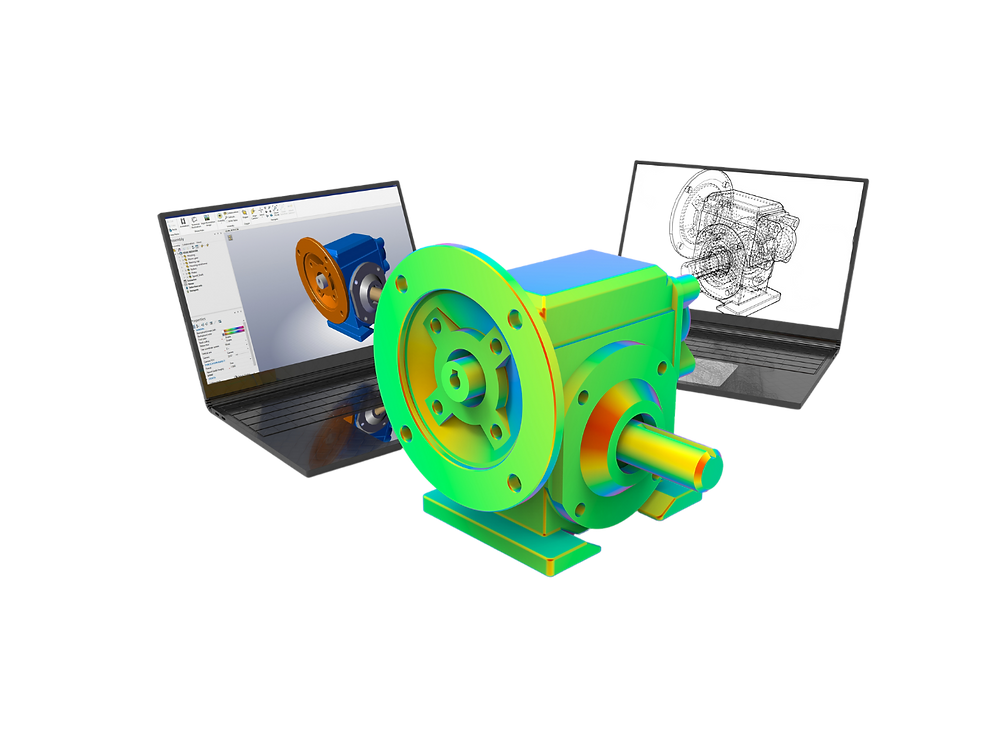
What is Abaqus?
Abaqus is a general-purpose FEA software suite — one of the most powerful and widely used in the world — for solving highly nonlinear structural, thermal, and coupled problems in aerospace, automotive, biomedical, and civil engineering.
Developed by Hibbitt, Karlsson & Sorensen, Inc. in 1978 and now owned by Dassault Systèmes Simulia, Abaqus is particularly renowned for its advanced nonlinear capabilities — complex material models, contact algorithms, and large deformation analysis that goes beyond what many general-purpose FEA tools can handle robustly.
Abaqus components
The Abaqus suite comprises several software components:
| Component | Purpose | Key capability |
|---|---|---|
| Abaqus/Standard | Implicit FEA solver | Static, quasi-static, frequency extraction, fatigue life |
| Abaqus/Explicit | Explicit dynamics solver | Impact, crash, drop test, metal forming, blast |
| Abaqus/CFD | CFD solver | Incompressible Navier-Stokes, thermal convection, FSI |
| Abaqus/CAE | Pre/post-processing GUI | Full model creation, job management, results visualisation |
| Abaqus Viewer | Post-processing only | Review results without CAE license (lighter resource usage) |
The 9 Abaqus CAE modules
Abaqus CAE is organised into 9 functional modules accessible from the Module drop-down at the top of the interface. Each module focuses on a specific step of the FEA workflow:
1. Part module
Create the geometry of each component in your model. You can sketch 2D profiles and extrude/revolve/sweep them into 3D solids, or import geometry from CAD files (IGES, STEP, CATIA, SolidWorks, etc.). Each part is independent — they are combined in the Assembly module.
2. Property module
Define material properties (elastic modulus, Poisson's ratio, density, plasticity curves, failure criteria) and assign sections (solid, shell, beam, truss) to each part. This module contains Abaqus's extensive material library — including metals, composites, elastomers, foams, and concrete.
3. Assembly module
Create instances of your parts and position them relative to each other to build the full assembly. Constraints (contact pairs, tie constraints, rigid body connections) are defined here in conjunction with the Interaction module.
4. Step module
Define the analysis steps — Static General, Static Riks (post-buckling), Dynamic Implicit, Dynamic Explicit, Frequency (modal), Heat Transfer, Coupled Temperature-Displacement, and more. Also configure output requests (field outputs to the .odb, history outputs for time-history data).
5. Interaction module
Define contact between surfaces (surface-to-surface, general contact), constraints (tie, rigid body, coupling, MPC), and connectors (springs, dashpots, actuators). Getting contact definitions right is often the most challenging part of nonlinear FEA models.
6. Load module
Apply boundary conditions (displacement, fixed support, symmetry) and loads (concentrated force, pressure, body force, thermal load, predefined fields). Loads can be ramped, stepped, or defined using amplitude curves for time-varying analysis.
7. Mesh module
Seed edges with element density, select element types (C3D8R, C3D10, S4R, B31, etc.), and generate the mesh. Mesh controls allow structured (hex-dominant) or free (tet) meshing. Verifying mesh quality — aspect ratio, warp factor, distortion — is a critical step before running.
8. Job module
Create and submit analysis jobs. Monitor convergence in the Abaqus Job Monitor (increments, iterations, warnings). Jobs can be submitted locally or to a cluster via queue scripts. The .inp file generated here can be edited manually for advanced configuration.
9. Visualisation module (Abaqus Viewer)
Post-process results from the .odb output database: plot contours (S, Mises, U, PE, PEEQ), deformed shapes, X-Y histories, generate animations, and extract tabular data. Free-body cuts, path plots along lines, and surface-averaged results are all available.
Step-by-step tutorial: cantilever beam under point load
This tutorial walks through a simple 3D cantilever beam — 200 mm × 20 mm × 10 mm, steel, with a 500 N downward point load at the free end. Target: predict maximum deflection and Von Mises stress.
Step 1: Create the Part
Open Abaqus CAE. Module → Part. Click "Create Part". Name: Beam. Type: 3D Deformable Solid. Shape: Solid/Extrusion. Click Continue. Sketch a 200 mm × 20 mm rectangle. Extrude 10 mm depth. Click Done.
Step 2: Define the Material and Section
Module → Property. Create Material: Name "Steel". Mechanical → Elasticity → Elastic: E = 210,000 MPa, ν = 0.3. Density = 7.85e-9 t/mm³. Create Section → Solid, Homogeneous, Material = Steel. Assign Section to the beam part.
Step 3: Create the Assembly
Module → Assembly. Create Instance → Independent (mesh on instance). Your beam part appears in the viewport. No position adjustments needed for a single-part model.
Step 4: Define the Step
Module → Step. Create Step → Static, General. Name: "Loading". Time Period = 1.0. Incrementation: Initial = 0.1, Min = 1e-5, Max = 0.1. Field Output: S, U, RF, E (add PEEQ if plasticity is needed).
Step 5: Apply Boundary Conditions and Load
Module → Load. Create Boundary Condition → Displacement/Rotation → select the clamped face (x=0 face): fix U1=U2=U3=UR1=UR2=UR3=0. Create Load → Concentrated Force → select the node at the free-end centre: CF2 = -500 N (negative Y direction).
Step 6: Mesh
Module → Mesh. Seed Part Instance → global seed = 5 mm. Assign Element Type → C3D8R (8-node linear brick, reduced integration — the workhorse element for most structural problems). Mesh Part Instance. Verify mesh quality (green elements = acceptable).
Step 7: Submit the Job and Monitor
Module → Job. Create Job → Name: "Beam_Analysis". Submit. Open Job Monitor to watch convergence. Typical run time for this model: under 5 seconds on any modern workstation.
Step 8: Visualise Results
When complete, click Results. Module → Visualisation. Plot Contours → S, Mises to view Von Mises stress distribution. Plot Contours → U, U2 for vertical deflection. The analytical solution for maximum deflection of a cantilever is δ = PL³/(3EI) — compare this to your FEA result to validate the simulation.
For a 200 × 20 × 10 mm steel cantilever: I = bh³/12 = 20×10³/12 = 1,666.7 mm⁴. δ_analytical = (500 × 200³)/(3 × 210,000 × 1,666.7) = 1.905 mm. Your Abaqus result should match within <1% with this mesh density.
Python automation in Abaqus
Every action you perform in Abaqus CAE is recorded as a Python command in the replay file (abaqus.rpy). Use Plug-ins → Macros → Start Recording to record a sequence of actions, then inspect the generated Python commands. This is the fastest way to learn the Abaqus Python API.
Once familiar, you can write scripts to parametrically modify models, run hundreds of design iterations, and extract and process results automatically — without touching the GUI. Run scripts from File → Run Script, or pass them to the Abaqus command line: abaqus cae script=my_script.py.
Frequently asked questions
What is Abaqus CAE?
Abaqus CAE (Complete Abaqus Environment) is the graphical pre/post-processor for Abaqus FEA. It provides the GUI for building models, submitting jobs, and visualising results.
What are the 9 modules in Abaqus CAE?
Part, Property, Assembly, Step, Interaction, Load, Mesh, Job, and Visualisation — each handling a specific phase of the FEA workflow.
What is the difference between Abaqus Standard and Explicit?
Abaqus/Standard uses implicit time integration — for static and low-speed dynamic analysis. Abaqus/Explicit uses explicit time integration — for fast transient events like impact, crash, and forming.
Can Abaqus be automated with Python?
Yes — the Abaqus Scripting Interface allows full automation via Python. Actions in the GUI are logged in abaqus.rpy, making it easy to learn the API by recording macros.